Writing a mapping
OntoWeaver essentially creates a Biocypher adapter from the description of a mapping from a table to ontology types. As such, its core input is a dictionary, that takes the form of a YAML file. This configuration file indicates:
to which (node) type to map each line of the table,
to which (node) type to map columns of the table,
with which (edge) types to map relationships between nodes.
How are config files related?
It may be difficult to understand how the type tags indicated in OntoWeaver’s mapping are related to the types indicated in BioCypher’s *schema*.
In the schema, the header of a block is the
RDFS label that lies in the
taxonomy of the ontology file, while the label_in_input is a kind of tag
that is written in the mapping, after a keyword (e.g. to_object).
Hint
OntoWeaver can automatically generate a schema file from your mapping, if you just need to have a one-to-one parity of type names. With that feature, you need to map the input data items to the taxonomy’s terms directly. That way you can just forget about having to write a schema file, in most cases. See ontoweave’s –auto-schema parameter, or the oncoweave.autoschema function.
As shown in the figure below, the column headers in the input data are linked to the type tag in the mapping, which are linked to the ontology classes in the schema.
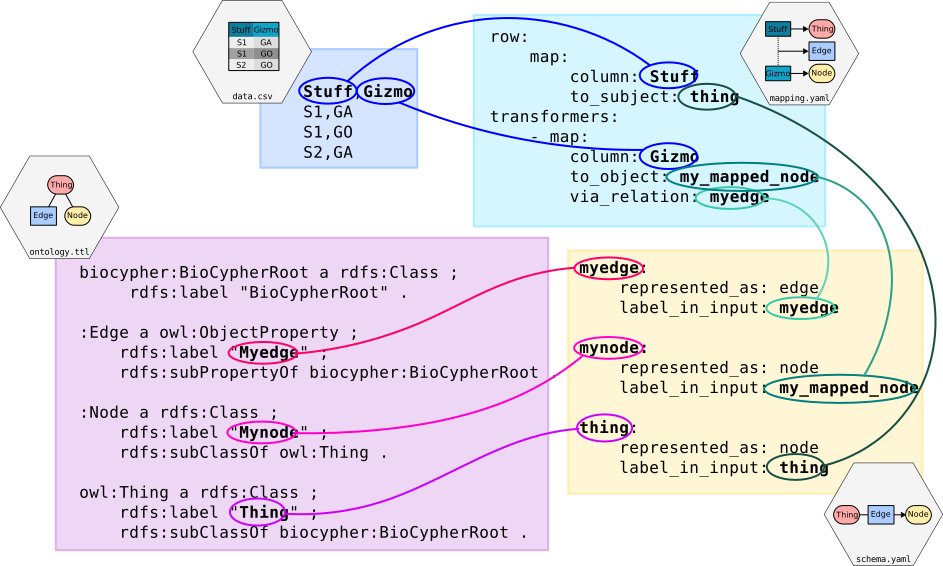
Four files represented as blocks with links between equivalent keywords.
Note
While not strictly necessary, it is often the case that people use the very same name for both the taxonomy classes in the schema and the type tags in the mapping; to ease the reading of config files. But if you integrate data using pre-made adapters, it can be useful to write your own schema to align terms.
Common Mapping
The following explanations assume that you are familiar with Biocypher’s configuration, notably how it handles ontology alignment with schema configuration.
The minimal configuration would be to map lines and one column, linked with a single-edge type.
For example, if you have the following CSV table of phenotypes/patients:
phenotype,patient
0,A
1,B
and if you target the
Biolink ontology, using a schema
configuration (i.e. subset of types), defined in your schema_config.yaml
file, as below:
phenotypic feature:
    represented_as: node
    label_in_input: phenotype
case:
    represented_as: node
    label_in_input: case
case to phenotypic feature association:
    represented_as: edge
    label_in_input: case_to_phenotype
    source: phenotypic feature
    target: case
you may write the following mapping:
row:
   rowIndex:
      # No column is indicated, but OntoWeaver will map the indice of the row to the node name.
      to_subject: phenotype
transformers:
    - map:
        column: patient # Name of the column in the table.
        to_object: case # Node type to export to (most probably the same as in the ontology).
        via_relation: case_to_phenotype # Edge type to export to.
This configuration will end in creating a node for each phenotype, a node for each patient, and an edge for each phenotype-patient pair:
          case to phenotypic
          feature association
                    ↓
           ╭───────────────────╮
           │              ╔════╪════╗
           │              ║pati│ent ║
           │              ╠════╪════╣
╭──────────┴──────────╮   ║╭───┴───╮║
│phenotypic feature: 0│   ║│case: A│║
╰─────────────────────╯   ║╰───────╯║
                          ╠═════════╣
╭─────────────────────╮   ║╭───────╮║
│          1          │   ║│   B   │║
╰──────────┬──────────╯   ║╰───┬───╯║
           │              ╚════╪════╝
           ╰───────────────────╯
Available Transformers
If you want to transform a data cell before exporting it as one or several nodes, you will use other transformers than the “map” one.
map
The map transformer simply extracts the value of the cell defined, and is the most common way of mapping cell values.
For example:
- map:
    column: patient
    to_object: case
Although the examples usually define a mapping of cell values to nodes, the transformers can also used to map cell values to properties of nodes and edges. For example:
- map:
    column: version
    to_property: version
    for_objects:
        - patient # Node type.
        - variant
        - patient_has_variant # Edge type.
split
The split transformer separates a cell value into several items, and then inserts a node for each element of the list.
If the cell value is a string, it uses the separator parameter to split
it.
If the cell value is any other type, it tries to iterate over it. In this case, any iterable object can be in the cell.
For example, if you have a list of treatments separated by a semicolon, you may write:
row:
   map:
      to_subject: phenotype
transformers:
    - map:
        column: variant
        to_object: variant
        via_relation: phenotype_to_variant
    - split:
        column: treatments
        from_subject: variant
        to_object: drug
        via_relation: variant_to_drug
        separator: ";"
     phenotype to variant      variant to drug
             ↓                       ↓
       ╭───────────────╮   ╭────────────────╮
       │         ╔═════╪═══╪═╦══════════════╪═════╗
       │         ║ vari│ant│ ║  treatments  │     ║
       │         ╠═════╪═══╪═╬══════════════╪═════╣
       │         ║     │   │ ║variant       │     ║
       │         ║     │   │ ║to drug       │     ║
╭──────┴─────╮   ║╭────┴───┴╮║  ↓    ╭──╮ ╭─┴────╮║
│phenotype: 0│   ║│variant:A├╫───────┤ X│;│drug:Y│║
╰────────────╯   ║╰─────────╯║       ╰┬─╯ ╰──────╯║
                 ╠═══════════╬════════╪═══════════╣
╭────────────╮   ║╭─────────╮║       ╭│ ╮ ╭──╮    ║
│      1     │   ║│    B    ├╫────────╯X ;│ Z│    ║
╰──────┬─────╯   ║╰────┬───┬╯║       ╰  ╯ ╰─┬╯    ║
       │         ╚═════╪═══╪═╩══════════════╪═════╝
       ╰───────────────╯   ╰────────────────╯
cat
The cat transformer concatenates the value cells of several
columns and then creates a single node. For example, the mapping below
would result in the concatenation of cell values from the columns
variant_id, and disease, to the node type variant. The
values are concatenated in the order written in the columns section.
row:
   cat:
      columns: # List of columns whose cell values are to be concatenated
        - variant_id
        - disease
      to_subject: variant # The ontology type to map to
cat_format
The user can also define the order and format of concatenation by
creating a format_string field, which defines the format of the
concatenation. For example:
row:
   cat_format:
      columns: # List of columns whose cell values are to be concatenated
        - variant_id
        - disease
      to_subject: variant # The ontology type to map to
      # Enclose column names in brackets where you want their content to be:
      format_string: "{disease}_____{variant_id}"
nested
The nested transformer can access values in nested key-value store. For instance, if your table cells contains a Python dictionary, or a Pandas one-dimensional DataFrame, or a flat JSON object string, nested will be able to access a value into it.
For instance, if your table looks like:
LINE |
WORDS |
|---|---|
0 |
{“en”: “good”} |
1 |
{“en”: “awesome”} |
Then, you will want to access first the column named “WORDS”, and the key named “en” in the nested JSON object.
To do so with nested, you need to indicate the sequence of keys, in the order of the nesting. For instance:
transformers:
    - nested:
        keys:
            - WORDS
            - en
        to_object: word  # The usual.
        via_relation: has_word
Note
The nested transformer can detect and parse JSON object notation, but if the
nested cell value is not a string, it will try to access it as a Python
variable, using the bracket syntax, e.g. value[key].
This should be enough to allow it to use a large number of data structures,
providing that they can be accessed with this syntax.
split_nested
This transformer is a combination of split and nested.
It first splits the cell value, and then on each item,
allows to access elements in a nested data structure.
For instance, imagine that your table contains Python lists, themselves containing dictionaries:
ITEM |
WORDS |
|---|---|
1 |
[{“en”: “good”},{“fr”: “bien”}] |
2 |
[{“en”: “awesome”},{“de”: “wunderbar”}] |
Then, you will want to access first the column named “WORDS”, and the key named “fr” or “de” in the nested JSON object.
To do so, you will map:
transformers:
    - split_nested:
        # No need to indicate a separator if the cell value is a list.
        keys:
            - WORDS  # The column name.
            - fr     # The nested key.
        to_object: word  # The usual.
        via_relation: has_word
Note
If the nested key does not exists, this transformer will silently skip the row and this will not create any node or property.
string
The string transformer allows mapping the same pre-defined static string to properties of some nodes or edge types.
It only needs the string value, and then a regular property mapping:
- string:
    value: "This may be useful"
    to_property: comment
    for_objects:
        - patient
        - variant
translate
The translate transformer changes the targeted cell value from the one contained in the input table to another one, as configured through (another) mapping, extracted from (another) table.
This is useful to reconciliate two sources of data using two different references for the identifiers of the same object. The translate transformer helps you translate one of the identifiers to the other reference, so that the resulting graph only uses one reference, and there is no duplicated information at the end.
For instance, let’s say that you have two input tables providing information about the same gene, but one is using the HGCN names, and the other the Ensembl gene IDs:
Name |
Source |
|---|---|
BRCA2 |
PMID:11207365 |
Gene |
Organism |
|---|---|
ENSG00000139618 |
Mus musculus |
Explicit translation
To define an explicit translation to map a gene from the second table (the one using Ensembl), you would do:
- translate:
    column: Gene
    to_object: gene
    translations:
        ENSG00000139618: BRCA2
File-based translation
Of course, there could be hundreds of thousands of translations to declare, and you don’t want to declare them by hand in the mapping file. Fortunately, you have access to another table in a tabular file, showing which one corresponds to the other:
Ensembl |
HGCN |
Status |
|---|---|---|
ENSG00000139618 |
BRCA2 |
Approved |
Then, to declare a translation using this table, you would do:
- translate:
    column: Gene
    to_object: gene
    translations_file: my_tabular_file.ext
    translate_from: Ensembl
    translate_to: HGCN
Note
The translate transformer allows translations_file to be any tabular file
format that can be loaded by OntoWeaver. In most cases, this means
anything that can be loaded by Pandas. However, you may have to pass additional
arguments to the (Pandas’) load function in some edge cases. To do so, just
add them to your mapping file. For instance:
- translate:
    column: Gene
    to_object: gene
    translations_file: myfile.csv.zip
    translate_from: Ensembl
    translate_to: HGCN
    sep: ";"
    compression: zip
    decimal: ","
    encoding: latin-1
Hint
You can use the “glob” feature to load multiple files to form your translation
table. For example: translations_file: my_table-part*.parquet.
replace
The replace transformer allows the removal of forbidden characters from the values extracted from cells of the data frame. The pattern matching the characters that are forbidden characters should be passed to the transformer as a regular expression. For example:
- replace:
    columns:
        - treatment
    to_object: drug
    via_relation: alteration_biomarker_for_drug
    forbidden: '[^0-9]' # Pattern matching all characters that are not numeric.
    # Therefore, you only allow numeric characters.
    substitute: "_" # Substitute all removed characters with an underscore, in case they are
    # located inbetween allowed_characters.
Here we define that the transformer should only allow numeric characters in the values extracted from the treatment column. All other characters will be removed and substituted with an underscore, in case they are located inbetween allowed characters.
By default, the transformer will allow alphanumeric characters (A-Z, a-z, 0-9), underscore (_), backtick (`), dot (.), and parentheses (), and the substitute will be an empty string. If you wish to use the default settings, you can write:
- replace:
    columns:
        - treatment
    to_object: drug
    via_relation: alteration_biomarker_for_drug
Let’s assume we want to map a table consisting of contact IDs and phone numbers.
id |
phone_number |
|---|---|
Jennifer |
01/23-45-67 |
We want to map the id column to the node type id and the
phone_number column to the node type phone_number, but we want
to remove all characters that are not numeric, using the default
substitute (““), meaning the forbidden characters will only be removed,
and not replaced by another character. The mapping would look like this:
row:
    map:
        column: id
        to_subject: id
transformers:
    - replace:
        column: phone_number
        to_object: phone_number
        via_relation: phone_number_of_person
        forbidden: '[^0-9]'
The result of this mapping would be a node of type phone_number,
with the id of the node being 01234567, connected to a node of type
id with the id Jennifer, via an edge of type
phone_number_of_person.
boolean
The boolean transformer can map any set of values onto a boolean pair.
It considers a set of truth values, along with a set of falsehood values, and then set the node ID to the user’s true or false value.
If no configuration is given for consider_true and consider_false,
OntoWeaver will use Python’s bool(value)` to assert the truth of the value
passed from the cell.
If output_true or output_false are omitted, they will default to “True”
and “False”.
For instance:
- boolean:
    column: my_column
    via_relation: my_relation
    consider_true:
        - Y
        - Yes
        - yes
    output_true: my_truth
    consider_false:
        - N
        - No
        - no
    output_false: my_falsehood
Is equivalent to:
if value in ["Y", "Yes", "yes"]:
    yield "my_truth"
elif value in ["N", "No", no"]:
    yield "my_falsehood"
else:
    raise exceptions.TransformerConfigError("Unknown value")
maths
The maths transformer allows to compute arithmetic operations on its configured columns.
Its main configuration variable is the operation, which is a format string
involving the names of the columns.
This transformer returns a floating-point number which is the result of the arithmetic operation.
For example:
Case manipulation transformers
The following transformers can change the case of the string within the cells:
lower: change all letters to lowercase,upper: change all letters to uppercase,capitalize: change the first letter to uppercase,lower_capitalize: change all letters to lowercase, then the first letter to uppercase.
Advanced type management
Map the same item to several types depending on its value with match
In some cases there might be a need to apply multiple type mappings to cell values within a single column. For example, having the table below:
LINE |
WORDS |
|---|---|
0 |
sensitive |
1 |
sensitivity |
2 |
productive |
3 |
productivity |
You might want to map the column WORDS based on the word type detected:
row:
   map:
     column: LINE
     to_subject: line
transformers:
    - map:
        column: WORDS
        match:
            - ive\b:
                to_object: adjective
                via_relation: line_is_adjective
            - ivity\b:
                to_object: noun
                via_relation: line_is_noun
Here we see a mapping that uses the match clause to apply different
type mappings to cell values based on the word type detected. We define
two regex rules:
ive\bwhich matches words ending withiveand maps them to the node typeadjectivevia the edge typeline_is_adjective.ivity\bwhich matches words ending withivityand maps them to the node typenounvia the edge typeline_is_noun.
This way we have managed to handle a case where a single column of words
can result in multiple node types which should be connected to the
subject type line with different edge types. The cell values
sensitive and productive would be mapped to the node type
adjective via the edge type line_is_adjective, while the cell
values sensitivity and productivity would be mapped to the node
type noun via the edge type line_is_noun.
Warning
When using a transformer that expects parameters, they should be passed within the transformer’s section level, not under the match items.
row:
   map:
     column: LINE
     to_subject: line
transformers:
    - split:
        separator: "i"  # Here, but not below.
        column: WORDS
        match:
            - ve\b:
                to_object: adjective
                via_relation: line_is_adjective
            - ty\b:
                to_object: noun
                via_relation: line_is_noun
Note
Note that if some value does not match any item, you will get a warning, but the mapping will skip the item and continue. This allows to implement a simple filtering.
Use different columns to get the id and the types
In some cases the type of the node or edge you would like to assign to a value extracted from the current column depends on the value extracted from another column. For example, lets look at the following table:
furniture |
localisation |
will_sit? |
name |
|---|---|---|---|
chair |
kitchen |
n |
Peter |
sofa |
bathroom |
y |
Paul |
fridge |
kitchen |
n |
Mary |
In this example we have a table with furniture, their localisation, whether they will be sat on or not, and the name of the person who owns them.
The mapping file for this table could look like this:
row:
   map:
      id_from_column: furniture
      match_type_from_column: localisation
      match:
        - kitchen:
            to_subject: kitchen_furniture
        - ^(?!kitchen$).*:
            to_subject: rest_of_house_furniture
transformers:
    - map:
        id_from_column: name
        match_type_from_column: will_sit?
        match:
            - y:
                to_object: person
                via_relation: will_sit
            - n:
                to_object: person
                via_relation: will_not_sit
With this mapping, we want to map the column furniture to the node types kitchen_furniture and
rest_of_house_furniture based on their localisation. The localisation of each piece of furniture is extracted from
the column localisation. The mapping uses the match clause to apply different type mappings based on the
localisation of the furniture, similarly as it was done in the previous example. This time, however, the match clause
needs to look at the values of another column — localisation, to determine the type of the node to be created.
In this case, we use the keyword match_type_from_column to indicate that the type of the node to be created depends
on the value of the localisation column. The id_from_column keyword indicates that the identifier of the node to be
created should be taken from the column furniture.
Next, we want to map the column name to the node type person, and define the edge type based on whether the
furniture will be “sat on” or not. We extract the name of the person from the column name, using the id_form_column
keyword and the edge type will be defined based on the value extracted from the column will_sit?.
The mapping uses the match clause to apply different type mappings based on the value of the column
will_sit?, defined via the match_type_from_column keyword. The match clause defines two regex rules:
y which matches the value y and maps the node type person via the edge type will_sit, and n which
matches the value n and maps the node type person via the edge type will_not_sit.
This mapping would result in three nodes of type person: Peter, Paul, and Mary, and two nodes of type
kitchen_furniture: chair and fridge, and one node of type rest_of_house_furniture: sofa. The
nodes of type person would be connected to the nodes of type kitchen_furniture via an edge of type
will_not_sit, and to the node of type rest_of_house_furniture via an edge of type will_sit.
Mapping different items to the same type with final_type
In some cases, you will need to map several items (e.g. columns) to the same type. However, this can be tricky, because the reason why an OntoWeaver mapping feels simple is because it relies on mapping to types, and not specific identifiers. But if you map several objects to the same type, then OntoWeaver cannot know which one you really meant.
For instance, in the following mapping, to what element should the “name” property be attached?
row:
    map:
        column: id
        to_subject: drug
transformers:
    - map:
        column: parentId
        to_object: drug  # Ambiguous!
        via_relation: subclass_of
    - split:
        column: childChemblIds  # A numpy array of drugs.
        to_object: drug  # Ambiguous!
        via_relation: superclass_of
    - map:
        column: name
        to_property: drugName
        for_object: drug  # Ambiguous: which one of the (more than) 3 created items?
The answer is: there is no way to know.
To solve this problem, you can use the final_type keyword. This keyword indicate that the type indicated in the classical to_object keyword is to be changed after the mapping happened. The classical commands are thus indicating a mapping to temporary types.
Following the previous example, we use “row_drug”, “parent_drug”, and “child_drug” as temporary types, and indicate final_type: drug for objects. The property is then mapped onto “row_drug”, which is not ambiguous.
row:
    map:
        column: id
        to_subject: row_drug
        final_type: drug
transformers:
    - map:
        column: parentId
        to_object: parent_drug
        final_type: drug
        via_relation: subclass_of
    - split:
        column: childChemblIds
        to_object: child_drug
        final_type: drug
        via_relation: superclass_of
    - map:
        column: name
        to_property: drugName
        # Here we need row_drug, or else we wouldn't know
        # to which drug to map this property:
        for_object: row_drug
Keyword Synonyms
Because several communities gathered around semantic knowledge graphs, several terms can be used (more or less) interchangeably.
OntoWeaver thus allows you to use your favorite vocabulary to write down the mapping configurations.
Here is the list of available synonyms:
subject=row=entry=line=sourcecolumn=columns=fieldsto_object=to_target=to_node=to_type=to_labelfrom_subject=from_sourcevia_relation=via_edge=via_predicateto_property=to_propertiesfor_object=for_objectsfinal_type=final_object=final_label=final_node=final_target=final_subjectreverse_relation=reverse_edge=reverse_predicate